

Asus ROG Ally is much like a handheld gaming PC, and you can now use the ROG Ally keyboard & shortcuts to get the real PC gaming experience.
Asus ROG Ally enlists among the best handheld gaming consoles for its powerful processor and customizable control setup. You can even play Nintendo games on Asus ROG Ally, and it can also run Steam games without lagging. At the same time, it can operate as a mid-range gaming PC with Windows 11 operating system with Armoury Crate firmware.
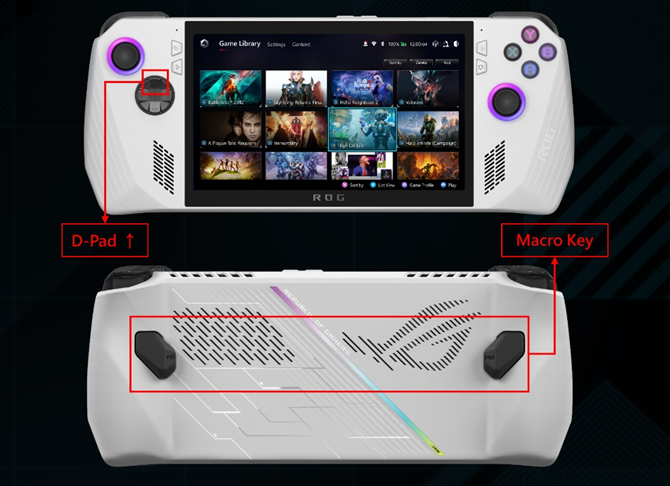
To use the Asus ROG Ally on-screen keyboard, press the M1 or M2 button simultaneously with the ‘Up’ key on the d-pad, and the keyboard will appear instantly. To efficiently use your console like a PC, we have shared two different methods to open the ROG Ally on-screen keyboard. We will also share the list of shortcuts to use on ROG Ally for easier accessibility.
Opening On-Screen Asus ROG Ally Keyboard
There are two easy methods to open the Asus ROG Ally keyboard, and you can follow whichever seems suitable for you.
Method #1: Pressing Buttons
To open the on-screen Asus ROG Ally keyboard, press the M1 or M2 button at the same time with the ‘Up’ key on the d-pad. The ROG Ally keyboard will instantly appear on the screen. However, this key binding would work under the default button mapping.
Method #2: From Command Center
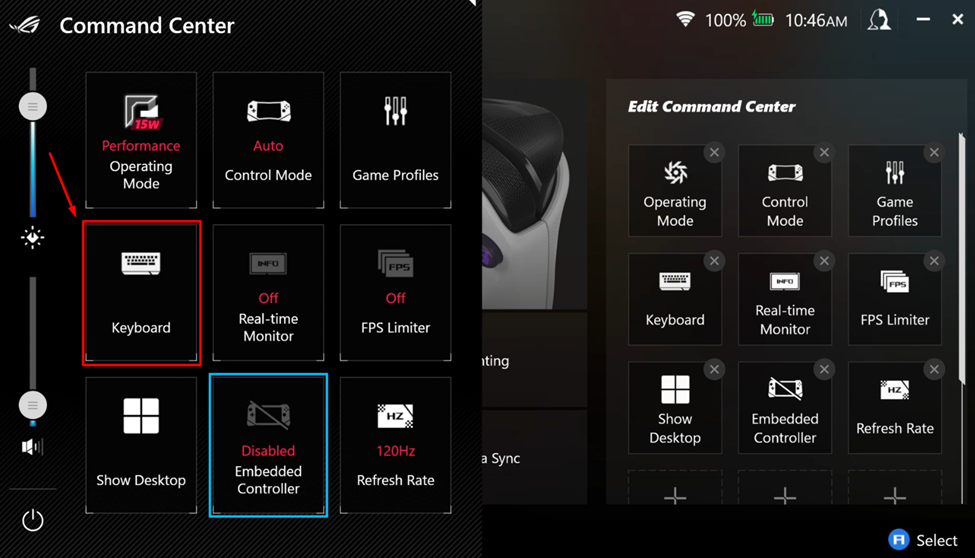
The Command Center on Asus ROG Ally is the quickest way to access any function or feature on ROG Ally. Therefore, you can simply press the Command Center button on the lower left side of the screen. Tap the ‘Keyboard’ button, and the on-screen keyboard will appear in both Gamepad Mode and Desktop Mode.
Asus ROG Ally Shortcuts List
Here we have enlisted the quick shortcuts that you can access by pressing keys under the default settings on Asus ROG Ally.
- Ctrl-Alt-Delete: Long press Command Centre
- Controller overview: Long press Armoury Crate
- Task Manager: M1 / M2 + D-pad down
- Show Desktop: M1 / M2 + D-pad left
- Task Viewer: M1 / M2 + D-pad right
- Take Screenshot: M1 / M2 + A
- Show Windows Notification Center: M1 / M2 + B
- Projection Mode: M1 / M2 + X
- Start Recording: M1 / M2 + Y
Final Words
Asus ROG Ally gives the vibe of a full-scale gaming PC with all the accessibility options that you get in a mid-range gaming PC. You can operate the console under the desktop and gamepad mode conveniently, and it also works with a cursor for a better experience. Hopefully, this article provided you with informational insights on how to access Asus ROG Ally keyboard and shortcuts.