

When a favorite pastime like playing Jump King on the Nintendo Switch hits a snag due to crashes, it can quickly turn fun into frustration. The good news is that there are several steps you can try to get back to ascending those perilous heights. From system updates and checking for overheating to more game-specific actions, this list of solutions may help resolve the issue and ensure that your gaming experience is smooth and crash-free.
Solution 1: Update Nintendo Switch
The outdated Nintendo is one of the main causes behind the not opening.
Sometimes, the unavailability of the internet might cause Switch to skip some recent crucial updates. So, it’s recommended to check and update the Switch manually to solve Jump King not loading.
How do I update my Nintendo Switch?
Here are 5 steps to update the Nintendo Switch:
- Open the Nintendo Switch HOME menu and click on the System Settings located in round icons in the home menu
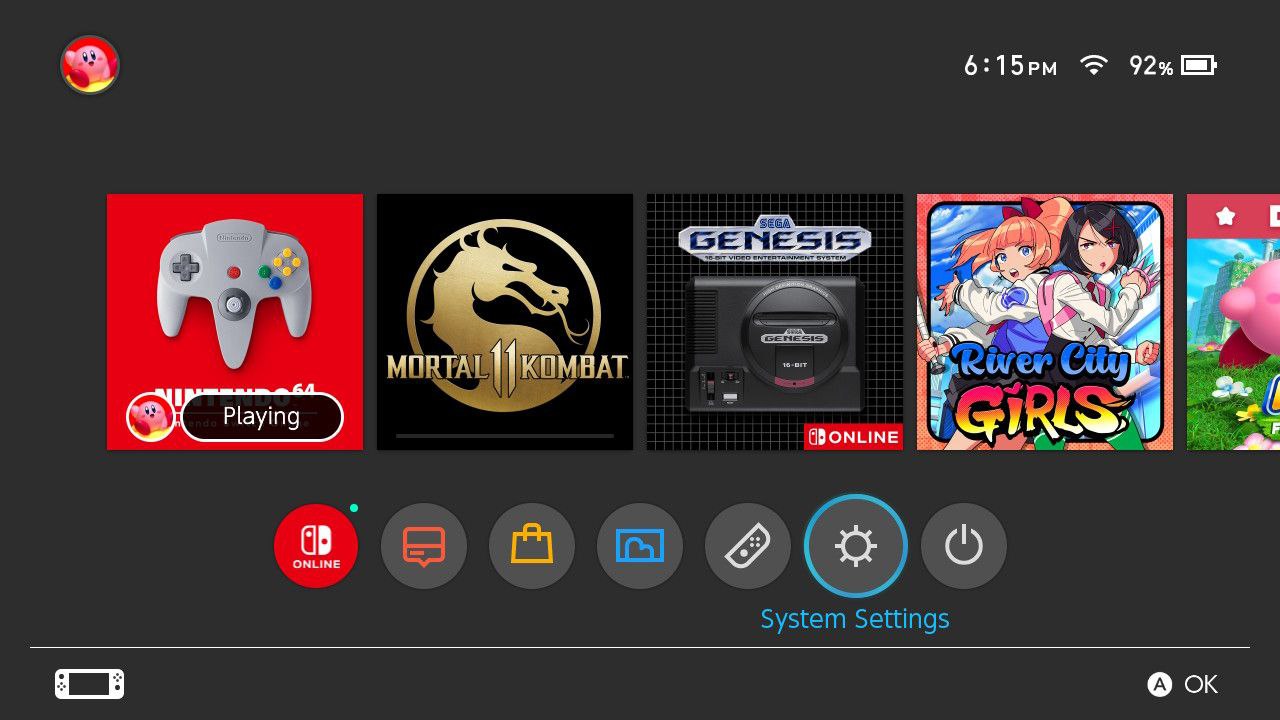
- A System Settings window will open, scroll down on the left menu. Select System
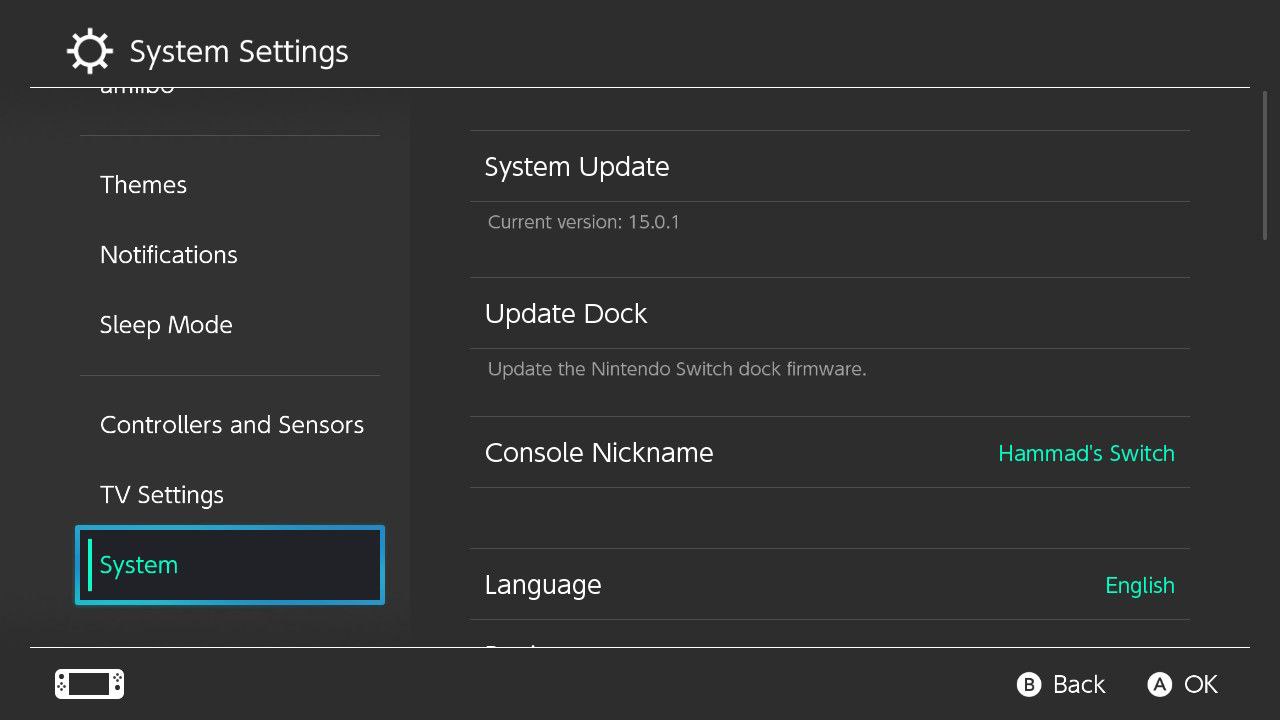
- Now Select System Update
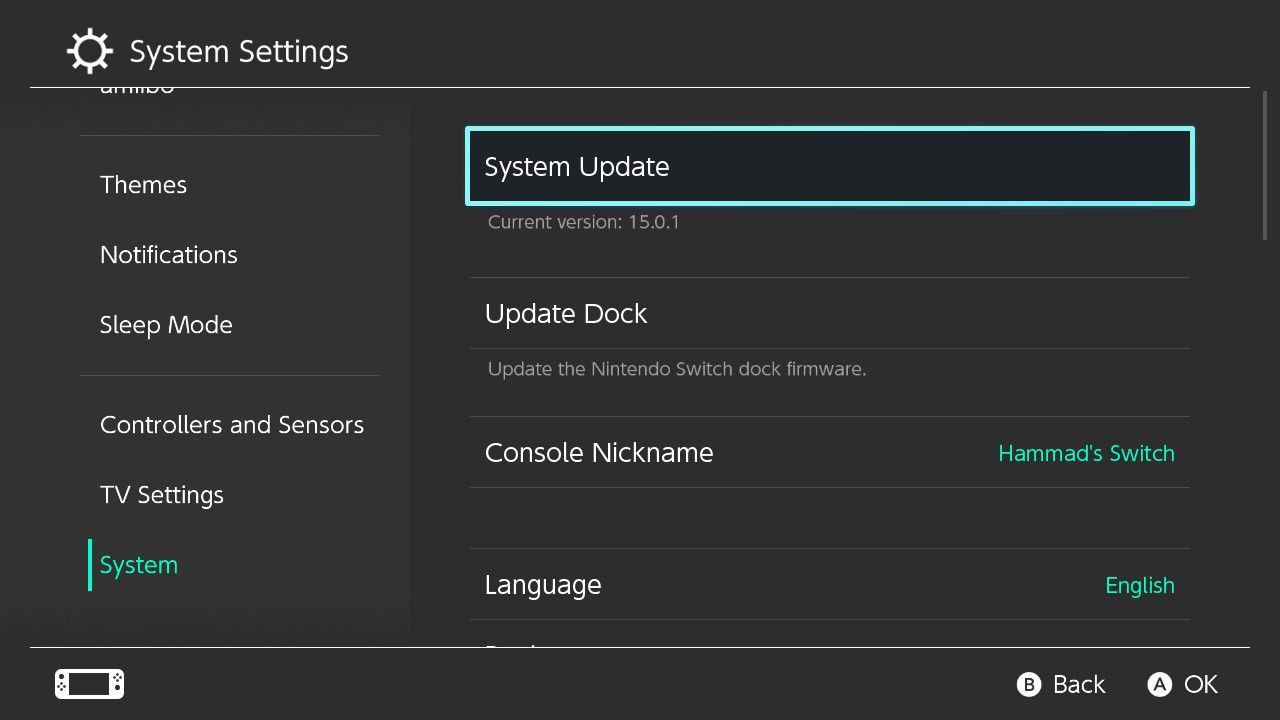
- The Nintendo Switch will start updating the software.
After updating the software restarting the console and checking the Jump King black screen is solved.
Solution 2: Make Sure Switch is Not Overheated
If your Nintendo Switch is overheating due to any reason, it can be one of the major reasons for decreased performance which in many cases leads to shutdown.
We have compiled a complete guide on what can overheat the Nintendo Switch, and how can this be solved.
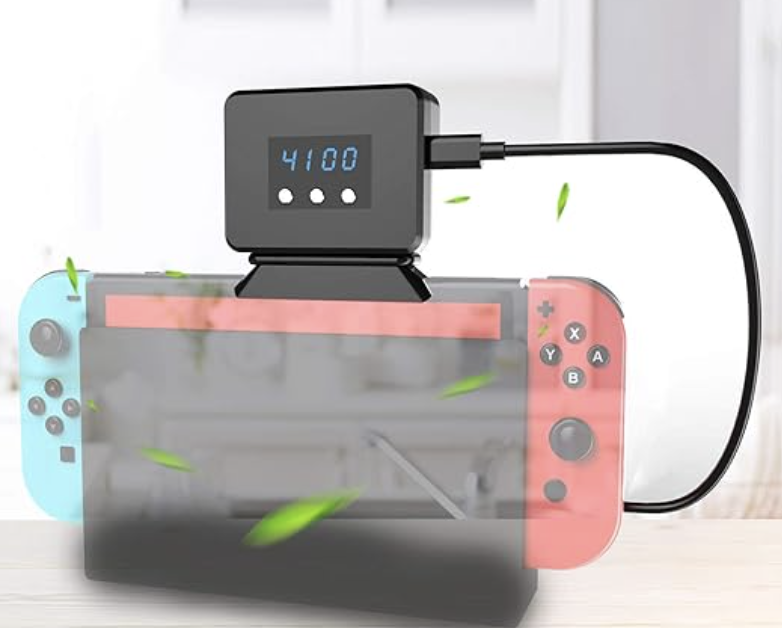
One of the common issues is no ventilation in docked mode and where cooling fans can work efficiently.
This product is top-reviewed and provides fast heat dissipation with adjustable fan speeds, temperature display, and sponge protection in a compact, portable design.
Solution 3: Check for Corrupted data
Jump King may get corrupted for some reason and eventually cause crashing. To prevent that we have to clear the corrupted data to solve shutdown.
How do I remove corrupted data from a switch?
Here is how you can remove corrupted data from the Nintendo Switch:
- From the home menu, select System Settings
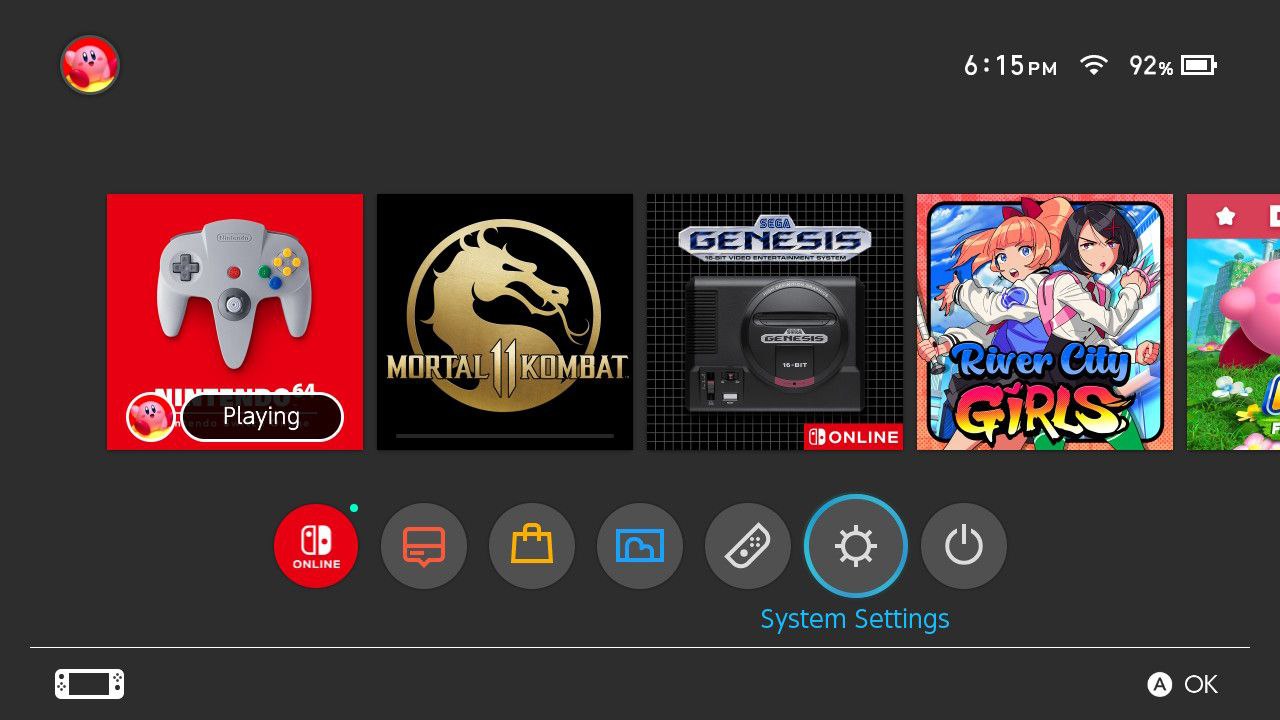
- Scroll on the left menu
- Find and select Data Management
- On the right side Select Manage Software
- Now select the most recent software which gives you an error
- After that select Check for Corrupted data
- When you find the corrupted data delete that software/game
- After uninstalling the game/software
- Go to the eShop
- Find the Game/software